Software management: update to the latest version, uninstall, and repair self-protection
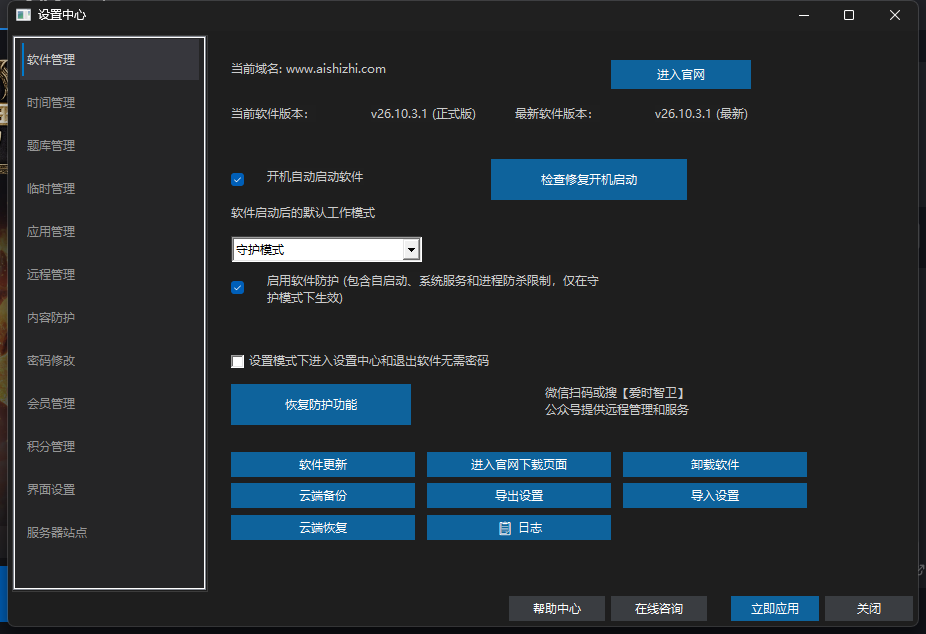
Settings → Software Management is the client's maintenance page: version update, uninstall, protection repair, auto-start repair, cloud backup/restore and logs all live here. Keep the client up to date.
How do I update the client to the latest version?
Two ways: prefer the one-click update under Settings → Software Management; if that fails, download the installer from the official site and install over the existing version. Steps below.
Option 1: one-click update in the client (recommended)
- 01
Open Software Management
Verify the parent password on the client home screen to enter Setup mode, then click Software Management on the left.
- 02
Compare current and latest version
When the page opens the client checks in the background and shows the latest cloud version (the bound domain is also displayed). Versions use Year.Month.Day.Build, e.g. v26.9.23.2 = the second build released on Sep 23, 2026.
- 03
Click Software Update
If you are already on the latest version a message says so; otherwise a confirmation dialog appears. After confirming, the built-in updater downloads and verifies the package, then launches the new version.
- 04
Confirm the upgrade
After the update finishes, reopen Settings → Software Management and confirm the current version is now the latest.
Option 2: manual upgrade from the official site
- 01
Open the download page
Click Open Website in the failure prompt, or click Go to the Download Page on the Software Management page.
- 02
Download and install over the existing version
Get the latest aivi_setup.exe and run it as administrator — it upgrades in place, no uninstall needed.
- 03
Verify the version
After installation, open the client and check Settings → Software Management to confirm the version.
Will updating lose my child's usage records?
No. Updates only replace program files; usage records and configured rules live in the system data directory, so no re-binding or re-configuration is needed. Updating requires internet access — if the network is restricted (school network, proxy) switch networks and retry; if antivirus blocks it, allowlist AIVI.
How do I uninstall? Can my child delete it?
Click Uninstall on the Software Management page: it launches the uninstaller, which itself asks for the parent password — cancelling or failing verification aborts, so the child cannot uninstall alone. After verification it cleans up services, files, shortcuts and related data. Day-to-day bypass protection also relies on the software protection switch and the guardian service's self-healing.
Lock stopped working or it no longer starts with Windows?
- Enable software protection (on by default, Guardian mode only): covers auto-start, the system service and anti-kill. Re-tick it if it was turned off.
- Repair protection: rebuilds core services and auto-start entries in one click. On success it reports recovery and re-ticks the switch; failures are usually due to missing administrator rights — reopen the client as administrator and retry.
- Repair auto-start: rewrites the boot task according to the auto-start checkbox; if auto-start is off it says nothing to repair.
- The Log button opens C:\ProgramData\aivi\run.log — attaching the log and version number when reporting an issue speeds up diagnosis a lot.